Skip to content →

Author: doug

ASIHTTPRequest – Uploading Photos

Recently I used ASIHTTPRequest to upload images and other data from an iPhone application to a web server. I search around and looked at all the different options and this was best and easiest to use. It’s open source and comes with lots of good examples. I was particularly impressed with the network queue.

The one thing I did not find, was sample code for was posting an image to a server. Here is some sample code:


// Initilize Queue
[networkQueue setUploadProgressDelegate:statusProgressView];
[networkQueue setRequestDidFinishSelector:@selector(imageRequestDidFinish:)];
[networkQueue setQueueDidFinishSelector:@selector(imageQueueDidFinish:)];
[networkQueue setRequestDidFailSelector:@selector(requestDidFail:)];
[networkQueue setShowAccurateProgress:true];
[networkQueue setDelegate:self];

// Initilize Variables
NSURL *url;
ASIFormDataRequest * request;

// Add Image
NSArray *paths = NSSearchPathForDirectoriesInDomains(NSDocumentDirectory,
NSUserDomainMask, YES);
NSString *documentsDirectory = [paths objectAtIndex:0];
NSString *dataPath = [documentsDirectory
stringByAppendingPathComponent:@”myImage.jpg”];

// Get Image
NSData *imageData = [[[NSData alloc]
initWithContentsOfFile:dataPath] autorelease];

// Return if there is no image
if(imageData != nil){
url = [NSURL URLWithString:@”http://myserver/upload.php”];
request = [[[ASIFormDataRequest alloc] initWithURL:url] autorelease];
[request setPostValue:@”myImageName” forKey:@”name”];
[request setData:imageData forKey:@”file”];
[request setDidFailSelector:@selector(requestWentWrong:)];
[request setTimeOutSeconds:500];
[networkQueue addOperation:request];
queueCount++;
}
[networkQueue go];

Note: It’s not necessary to use a queue here because I’m only uploading 1 thing. But in my application I’m uploading many things and a queue was helpful. It also runs in the asynchronously in the background, which prevents the UI from getting locked up.

Note 2: When sending large files you should use “setFile” instead of “setData”. Files are then read from disk instead of memory. Here is an updated example. Thanks again to Ben Copsey for this library and his useful comments below.

NSString *imagePath = [documentsDirectory
stringByAppendingPathComponent:@”myImage.jpg”];
url = [NSURL URLWithString:@”http://myserver/upload.php”];
ASIFormDataRequest *request =
[[[ASIFormDataRequest alloc] initWithURL:url] autorelease];
[request setPostValue:@”myImageName” forKey:@”name”];
[request setFile:imagePath forKey:@”photo”];

More info on streaming here: http://allseeing-i.com/ASIHTTPRequest/How-to-use#streaming

Comments closed

WD My Book 1 TB Hard Drive – Partition Failed

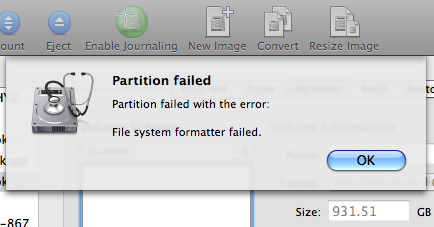
I recently bought at Western Digital My Book 1 TB Hard Drive for my MacBook Pro. I wanted to use it for Time Machine backups, which meant that I needed for format it as Mac OS Extended. It came pre-formatted as FAT.

I used Disk Utility to partition it and got an error a few seconds into it.
wd-error
The error window said: “Partition failed. Partition failed with error: File system formatter failed”.

After pulling my hair out for a while, I finally figured it out…

I’m not exactly sure the reason why, but Mac OX has an issue with a “Master Boot Record” bigger than 512mb. Luckily the solution is easy.

1. Open up Disk Utility.

2. Select your drive on the left hand side.

3. Then click on the “Partition” tab.

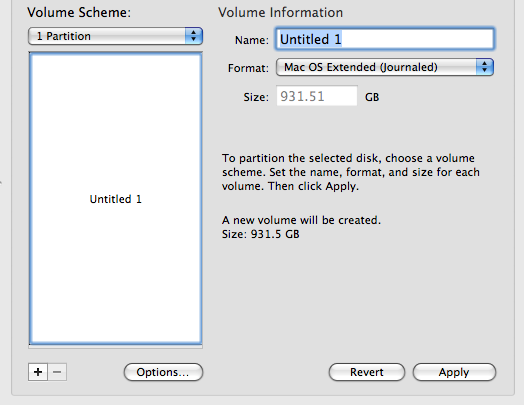
4. Choose Volume Scheme: “1 Partition” and select the format: “Mac OS Extended (Journaled)”
wd-options

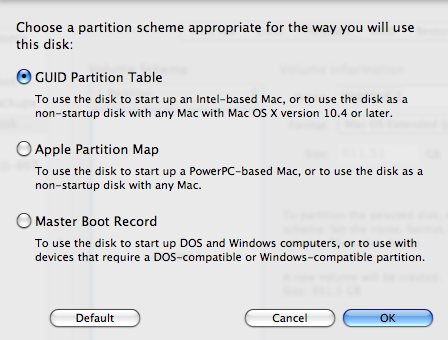
5. Then click on the “Options” button.

6. Here is the important part. Choose “GUID Partition Table” instead of “Master Boot Record”. Then click “OK”.
wd-partition

7. Now click “Apply” to start the partition process. That’s it!

Comments closed

Undefined symbols: _SCNetworkReachabilityCreateWithName

I was recently adding some code to check for the availability of the network, so I can display an error to the user if unavailable.

I looked at the SeismicXML application and borrowed the following code:


// Use the SystemConfiguration framework to determine if the host that provides
// the RSS feed is available.
– (BOOL)isDataSourceAvailable
{
static BOOL checkNetwork = YES;
if (checkNetwork) {
// Since checking the reachability of a host can be expensive,
// cache the result and perform the reachability check once.
checkNetwork = NO;

Boolean success;
const char *host_name = “earthquake.usgs.gov”;
//const char *host_name = “localhost”;

SCNetworkReachabilityRef reachability =
SCNetworkReachabilityCreateWithName(NULL, host_name);
SCNetworkReachabilityFlags flags;
success = SCNetworkReachabilityGetFlags(reachability, &flags);
_isDataSourceAvailable = success &&
(flags & kSCNetworkFlagsReachable) &&
!(flags & kSCNetworkFlagsConnectionRequired);
CFRelease(reachability);
}
return _isDataSourceAvailable;
}

I wouldn’t compile unless I added the following import:

#import

After adding this I still go 2 more errors, but these were a bit more cryptic.

 Undefined symbols:
"_SCNetworkReachabilityCreateWithName", referenced from:
-[TheElementsAppDelegate isDataSourceAvailable] in TheElementsAppDelegate.o
"_SCNetworkReachabilityGetFlags", referenced from:
-[TheElementsAppDelegate isDataSourceAvailable] in TheElementsAppDelegate.o
ld: symbol(s) not found
collect2: ld returned 1 exit status

After some digging around I realized that I was missing the SystemConfiguration.framework framework.

So here is what I did to add it.
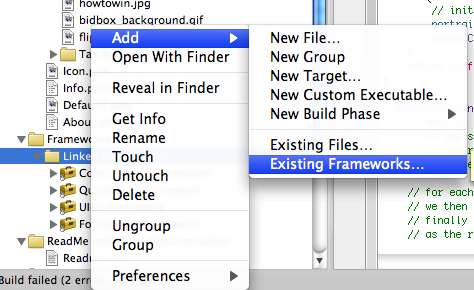
1. I right click on “Frameworks” and choose: Add < Existing Framework
add_framework

2. Browsed to the file: /System/Library/Frameworks/SystemConfiguration.framework

3. Rebuilt the project and my error was gone.

Comments closed

Install SUN JDK on Fedora 10

Installing the SUN JDK on Fedora is pretty simple. Here are some steps you can follow:

1. Go to: http://java.sun.com/javase/downloads/index.jsp

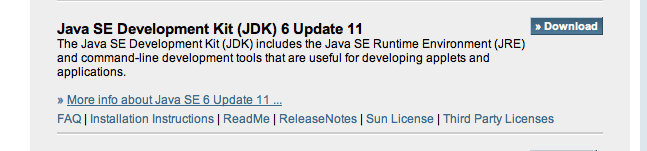
2. Click the download button next to: “Java SE Development Kit (JDK) 6 Update 11” or which ever version you want.

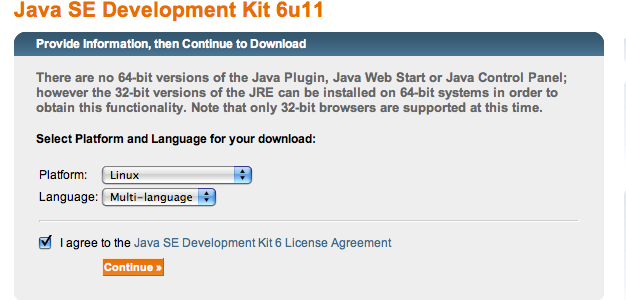
3. On the next page, select Platform: “Linux” and Language: “Multi-language”.  Click on Continue.
4. Then click on the file to download: jdk-6u11-linux-i586.bin  This will download the file to your computer.

5.  Next we need to make the file executable:
     chmod a+x jdk-6u11-linux-i586.bin

6. Then run the installer:
     ./ jdk-6u11-linux-i586.bin

You’ll need to read the Terms & Conditions and accept them.

At this point you can use it as it or set it up more.  Here is what I did.

7.  As root I moved it to /usr/local
     sudo mv  jdk1.6.0_11 /usr/local

8. Then I updated my .bashrc to add it to my path:
     vi ~/.bashrc

Add the following:
export JAVA_HOME=/usr/local/jdk1.6.0_11
export PATH=$PATH:$JAVA_HOME/bin

9.  Now to use java either source the .bashrc like:
     source ~/.bashrc

Or open a new terminal window.

Note 1: Note, these steps should work on most linux distros.

Note 2: If you already have OpenJDK installed, you can remove it with:
     # yum remove java-1.6.0-openjdk java-1.6.0-openjdk-plugin

Note 3: If you are missing some dependancies, you can add them like:
     # yum install compat-libstdc++-33 compat-libstdc++-296

Adding javac to your Path
To make javac available to any individual user, just add the following to each user’s path:

export JAVA_HOME=/usr/local/jdk1.6.0_11
export PATH=$PATH:$JAVA_HOME/bin

For example, if you have a user called doug, you’d open:
/home/doug/.bashrc

And add the 2 export command. (This assume you are using bash and the /home/doug is your home directory)

If you want to make is available to all users, as root edit the file:
/etc/profile

And again add:
export JAVA_HOME=/usr/local/jdk1.6.0_11
export PATH=$PATH:$JAVA_HOME/bin

If your shell is tcsh, you can add it here:
/etc/csh.cshrc

Firefox Plugin
You need to manuallly install the plugin. I followed the instructions in this thread: http://www.e-graviton.com/ird/node/195

On my Linux box, the plugins directory does not exist. So I have to create a new one first. Here are the steps:

1. Make a symbolic link:
$ mkdir plugins
$ pwd
/home/doug/.mozilla/plugins
$ ln -s /usr/local/jdk1.6.0_11/jre/plugin/i386/ns7/libjavaplugin_oji.so ./libjavaplugin_oji.so
$ ls
libjavaplugin_oji.so
$

2. Then I added the following lines to my .bash_profile
MOZ_PLUGIN_PATH=$HOME/.mozilla/plugins
export MOZ_PLUGIN_PATH

3. Log off and log on again, start the firefox, and I can run the java applet on linux!
Comments closed

Distribution Provisioning Profile not showing up

I recently spent about 2 hours trying to get my Distribution Provisioning Profile to show up. I followed the instructions and did everything, but still it would not show up.

Then I came across this thread: http://www.v2ex.com/2008/10/22/distribution-provisioning-profile-not-showing-up/

The first suggestion was to create a new project. I created a new project and my Distribution Provisioning profile appeared in it. Then I went back to my main project and it appeared there too. Problem solved!

Comments closed

Adobe Flex ComboBox Cell Padding

Recently I was trying to figure out how to make the padding in the cells of a <mx:comboBox> smaller than the default. This proved to be much harder than I thought. But I eventually found a solution.

Here is what the default looks like:

Here is the code I came up with:


And here is the final output:


Comments closed

Open Link in Safari

Here some sample code showing you how to open a link in Safari when clicked on in your UIWebView. The method shouldStartLoadWithRequest is a delegate method that is called when a link is clicked on. You can override the method and tell it to open in Safari.

– (BOOL)webView:(UIWebView *)webView
shouldStartLoadWithRequest:(NSURLRequest *)request
navigationType:(UIWebViewNavigationType)navigationType; {

NSURL *requestURL = [ [ request URL ] retain ];
// Check to see what protocol/scheme the requested URL is.
if ( ( [ [ requestURL scheme ] isEqualToString: @”http” ]
|| [ [ requestURL scheme ] isEqualToString: @”https” ] )
&& ( navigationType == UIWebViewNavigationTypeLinkClicked ) ) {
return ![ [ UIApplication sharedApplication ] openURL: [ requestURL autorelease ] ];
}
// Auto release
[ requestURL release ];
// If request url is something other than http or https it will open
// in UIWebView. You could also check for the other following
// protocols: tel, mailto and sms
return YES;
}
Comments closed

PostgreSQL Sequences

Today I was trying to figure out the name of a sequence in the db, so I could add it to my hibernate mapping.  I usually use pgAdmin, but that wasn’t an option today.  After some searching, I eventually figured it out, but it took me awhile…

Get a list of all Sequences in a schema:
select sequence_name from information_schema.sequences where sequence_schema=’public’

Get a list of all tables:
select table_name from information_schema.tables where table_schema=’public’

 
Get the next sequence value for sequence: foo_seq
SELECT setval(‘foo_seq’, 42);

 
Update the sequence to 42 for sequence: foo_seq
select nextval(‘foo_seq’);

 
Note if you are looking for more info on sequences check here: Sequence-Manipulation Functions

Comments closed

iPhone App: KQED Daily Schedule

My first iPhone application was posted on the Apple App Store today.  The KQED Daily Schedule

 I’m always interested in what is currently playing on KQED, my local NPR affiliate.  So I created an application that download the Radio and TV schedule and diplays it on the iPhone.  It tells you the program, time, description if available and link to more information.  I hope you enjoy it.    You can download it for FREE from the App Store here:  KQED.app

More info and screenshots can be found on the iPhone App Page

This application is not affiliated with KQED.  It uses RSS feeds provided by KQED  (http://www.kqed.org/community/rss/) and NPR (http://www.npr.org/rss/) to create an iPhone experience.

Comments closed